
Site content branding is an optional add-on that allows you to have your own site to provide NodePing monitoring to your customers, with your brand information on the site. The site is hosted on our servers and can either a subdomain of nodeping.com (like "example.nodeping.com") or your own subdomain (like "monitoring.example.com"). It provides the ability to customize your banner and footer as well as add your own documentation, links, or other pages to the application.
We do not provide third party billing services. The content branding is a great tool for providing access to the monitoring UI for service providers who are adding monitoring to their suite of complimentary services. Generally, it is best paired with use of our API for provisioning accounts and integrating with other services.
When Site Content Branding is enabled for your account, a tab will appear on the Branding page of your Account Settings. On that tab you can edit the HTML that appears at the top and bottom of each page. You can also add or remove additional pages of content, and modify the CSS that controls the look of the site overall. Content is cached on the web servers, so some changes aren't visible immediately when you save them. Updates typically should be propogated and visible within 30 seconds or so.
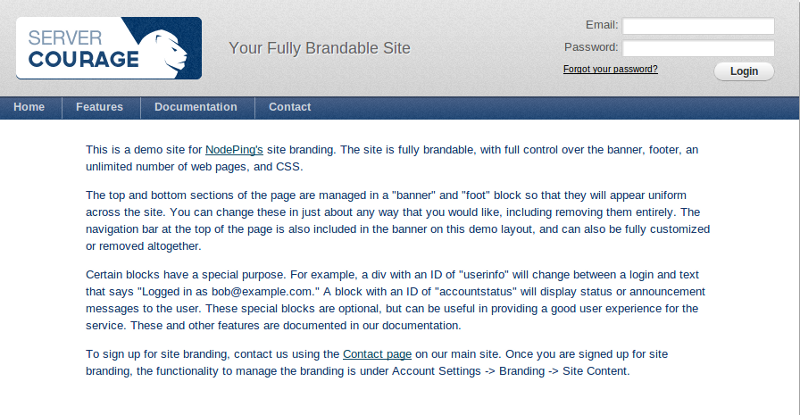 There are four components that are always present, which you can change but you cannot remove: The banner, foot, index page, and custom css. The banner controls the top of the page, which by default shows a blue background, the login form, site navigation, and a logo, all of which can be changed to your own branding and requirements. In fact, you can leave any or all of that out entirely and go with something completely different in your banner if you would like to do so. The foot controls the bottom of the page, the area which on our main site includes the Terms of Service, Privacy Policy, and copyright information. Like the banner, the foot has to be present but it can be completely changed according to your requirements. On many sites a "main" css file will be listed on your branding page, but this is not normally editable directly. On the other hand, the "custom" css file is loaded after all other css is loaded, so anything you add in the custom css block will override other styling other than any that's placed directly in the HTML. The index page will be displayed to any visitor who is not logged in.
The public reports do not use the same banner and foot used on other pages. There are two optional components that can be used to customize these: reportsbanner and reportsfoot. These are not created by default, but can be added using the "Add new page" form. These can be used, for example, to place your logo on all reports, add a custom message to the bottom of the public reports, and so on.
You can add any number of additional pages to the site using the "Add new page" form at the bottom. These pages will be directly and publicly accessible at whatever page ID that you give them, so if you call something Page2 it will be accessible on the site at /Page2.
This feature assumes that it is being used by people who can work reasonably well with HTML, and in order to give you maximum control over your branding we provide direct access to editing HTML rather than trying to work through rich editors or a templating language. Scripting within the page is supported. We currently do not support uploading images to our servers, but you can include images hosted elsewhere in your pages.
There are a few special elements you can add to your site that provide specific functionality. The login form can be anywhere in the page (or left out entirely if you wanted to), but we recommend that if you include the login form you place it in a block with an ID of "np_user_info". This will cause the login form to be replaced "Logged in as" message after the user logs in. Similarly, if you include an element with an id of "accountstatus" it will be used to display information about the account status if that is relevant, as well as system status messages and other similar messages. The demo layout places this block in the banner. If you leave out the accountstatus block entirely it will be added automatically next to the main application navigation (normally to the right of Account Settings).
Sites are added on request, typically within a day. There is a setup fee for this feature. A demo site is available.